
Access
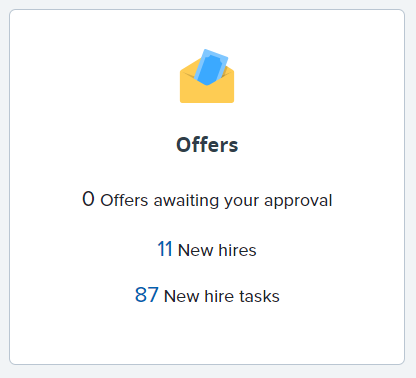
You can access the new hire onboarding task list from your dashboard by clicking New hire tasks in the Offers tile.
You can also access the task list by selecting My new hire tasks from the three stacked bars menu, aka hamburger menu, located in the upper left corner.
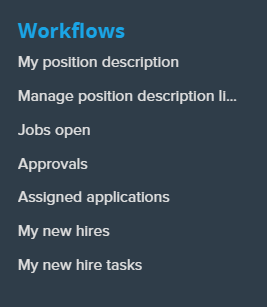
My New Hires
Your new hires will be listed. Click View all tasks to the right to open the task list for a specific new hire.

New Hire Tasks
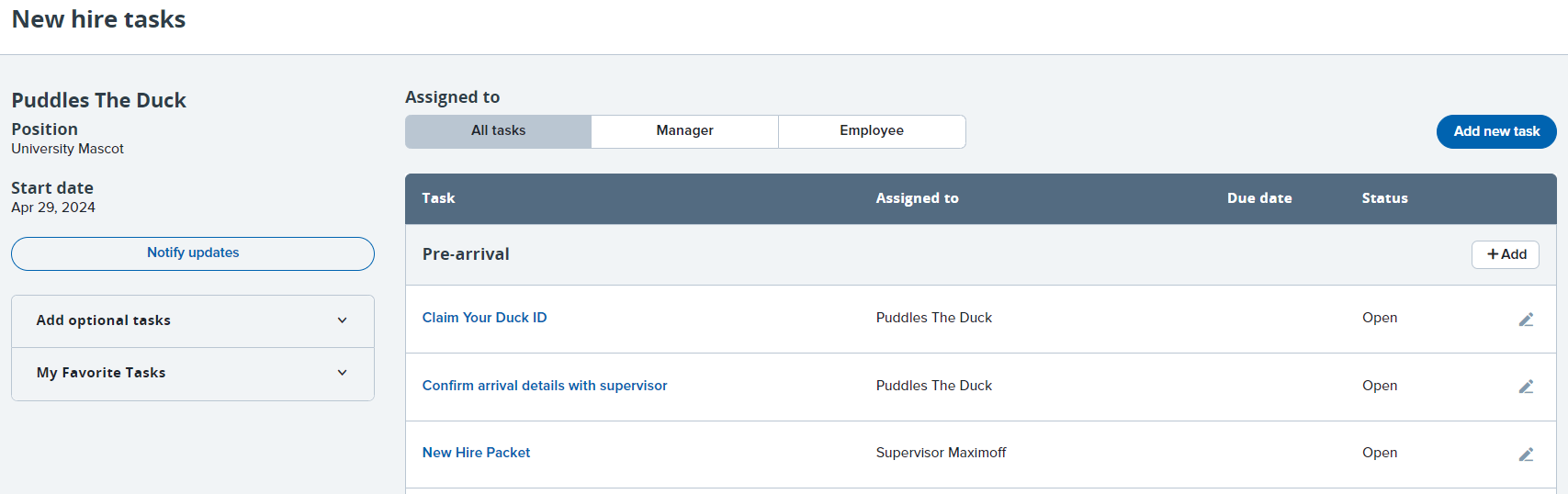
New hire tasks are visible to the supervisor and the onboarding delegate (if assigned). The employee's name, start date, and position title are referenced in the upper left corner. Tasks are assigned to the new hire and/or their manager (supervisor) as listed under the Assigned to column. You can view the task content by clicking on the title.
Task Status
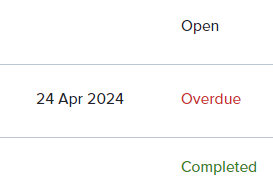
The status can be found in the Status column. Overdue tasks will be displayed in red while completed tasks will be displayed in green.
Editing Tasks
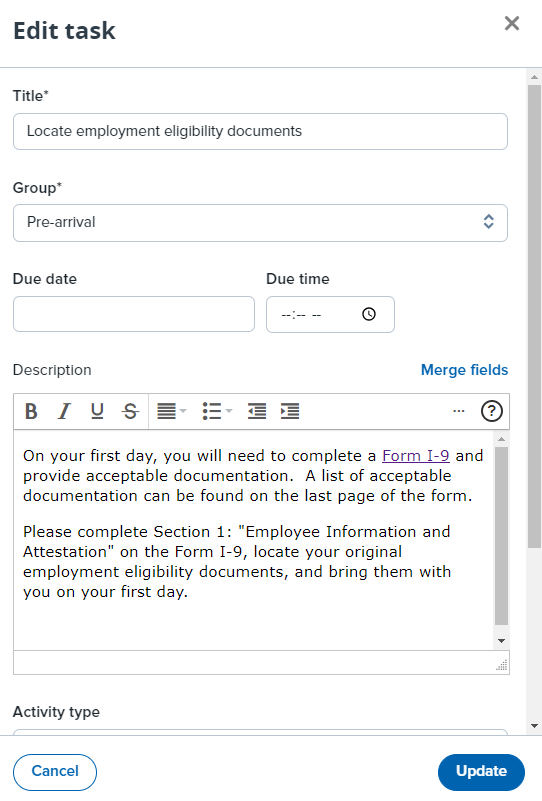
You can edit incomplete tasks using the pencil icon. Take care when editing tasks, these lists are designed to ensure new employees have important information. Editing task lists may result in new hires missing important information. See Notify New Hire of Task Updates below.

Creating Tasks
You can create new tasks by clicking the Add new task button located at the top of the task list.

You can also create a new task by clicking the +Add button to the right of each group header.

Each task requires a title, group selection, and assignment (allocation) to either the employee, manager, or both. See Notify Hire of Task Updates below.

This will copy the task to your My Favorite Tasks menu which can be accessed by clicking the adjacent down symbol. This will allow you to easily add the same task to any new hire task list.
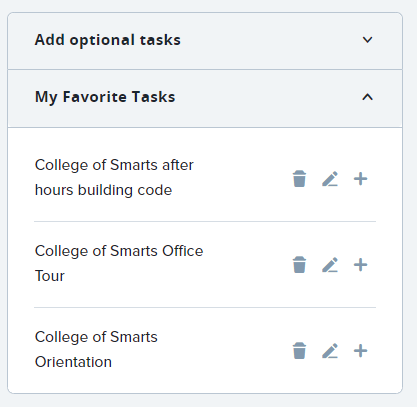
Optional Tasks
Currently, optional tasks are not available for selection under the Add optional tasks menu.
Notify Hire of Task Updates
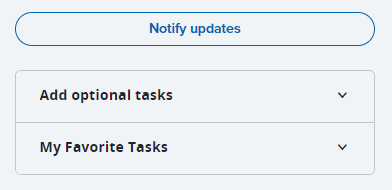
If you edit or create tasks you will want to alert your new hire. They will only be alerted to such changes if you send a notification. To notify your new hire of changes to their task list, click the Notify updates button located in the left side bar.
In the pop-up window you will have the opportunity to make edits to the notification template prior to sending. Be sure to sign the email so the new hire knows who to contact should questions arise. Click Send when you have finished making edits.